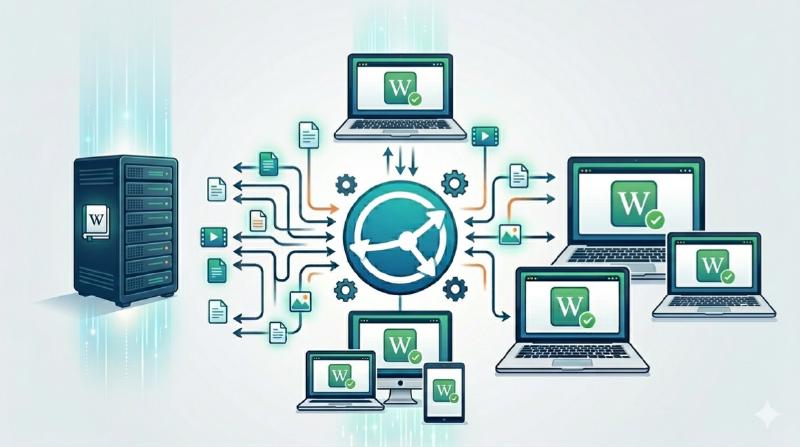
In my previous post Putting Karpathy’s LLM-Wiki Methodology into Practice with Obsidian, I briefly mentioned the data sync layer that keeps everything alive. The LLM-Wiki setup depends on consistent data across devices, and Syncthing is what sits underneath it all. I skimmed over it at the time—just said “ZeroTier plus Syncthing” and moved on. Today I want to actually walk through the whole setup.
Why Syncthing
I tried several approaches before finding it, and none of them felt right:
Cloud drives—the privacy always felt questionable, and uploading big files only to download them back later is just slow. iCloud costs money for storage, and occasionally leaves .icloud residue files around synced Markdown documents. Git is great for code, but stuffing Obsidian attachments and images into it makes every commit huge.
That’s when I discovered Syncthing.
It does one thing: sync folders between your own machines. P2P transfer, no middleman server. Open source, free, no space limits. Your data stays on your own devices, period.
For me, two things mattered most: doesn’t cost anything, nobody else can see what’s in there.
My Setup
Three devices:
- One MacBook Pro (primary) — daily driver for coding, Obsidian, and LLM-Wiki. Goes wherever I go.
- One MacBook Pro (secondary) — at home, same directory structure, open it after work and jump right in
- One Linux server — runs 24/7 on Debian. Syncthing lives inside a Docker container here.
I wire them together through ZeroTier to form a virtual network. I rented a VPS specifically to host a Moon relay node, and it’s made a noticeable difference in stability for this small network. Doesn’t matter if the Mac is on the office network or home Wi-Fi—it always finds the server.
The sync relationship isn’t “three machines all connected to each other” like I first imagined. Instead, it’s a chain:
First, the primary Mac and the Linux server set up a two-way share. Then the Linux server shares the same knowledge base folder with the second Mac. All changes on the primary Mac sync to the server first, then get pushed to the secondary Mac. And vice versa—edits on the secondary Mac flow up to the server, then back down to the primary.
The Linux server acts as the hub. Everything from both Macs converges into one knowledge base on the server.
One Important Habit to Keep
Before getting into the setup steps, one thing I learned the hard way with the LLM-Wiki workflow:
Don’t let multiple LLMs modify knowledge base files at the same time.
When the LLM runs a workflow like /my-wiki-src or /my-wiki-talk, it might batch-update, create, or delete knowledge pages across dozens of files. If both Macs trigger a workflow simultaneously, both ends are writing to the same folder—Syncthing will detect conflicts and generate a mess of .sync-conflict files.
My practice: only run LLM workflows on one machine at a time. The other machine is for browsing and manual editing only. If you want to run AI workflows on both, take turns—wait until one finishes and syncs completely before triggering the other.
Setup Steps
1. ZeroTier First
Before anything else, get the network running. ZeroTier puts two separate machines on the same virtual network, so they’re never separated by physical location or network changes.
|
|
Once both machines join the same network, ZeroTier assigns each one a virtual IP—something like 10.147.20.x. Ping each other’s virtual IP to confirm they can talk.
The Moon node is what I set up on a rented VPS. ZeroTier’s official relay servers can be slow, and running my own Moon relay made a real difference in connection stability—especially when the Mac switches between office and home networks. Plenty of tutorials online for building a Moon node, so I won’t dig into that here.
2. Install Syncthing
Once the network is up, Syncthing goes in next.
Mac (Homebrew):
|
|
Or grab the GUI version with brew install --cask syncthing. I just run the command-line version and hit http://127.0.0.1:8384 in my browser for the Web GUI.
Linux server (Docker):
|
|
Adjust the paths to match your setup. Mounting the config volume means upgrading the Docker image later won’t lose your settings. --restart unless-stopped makes sure it survives a server reboot.
Once the container is running, hit http://your-zerotier-ip:8384 to access the Web GUI.
3. Add Each Other as Devices
This is where people usually get stuck for no reason.
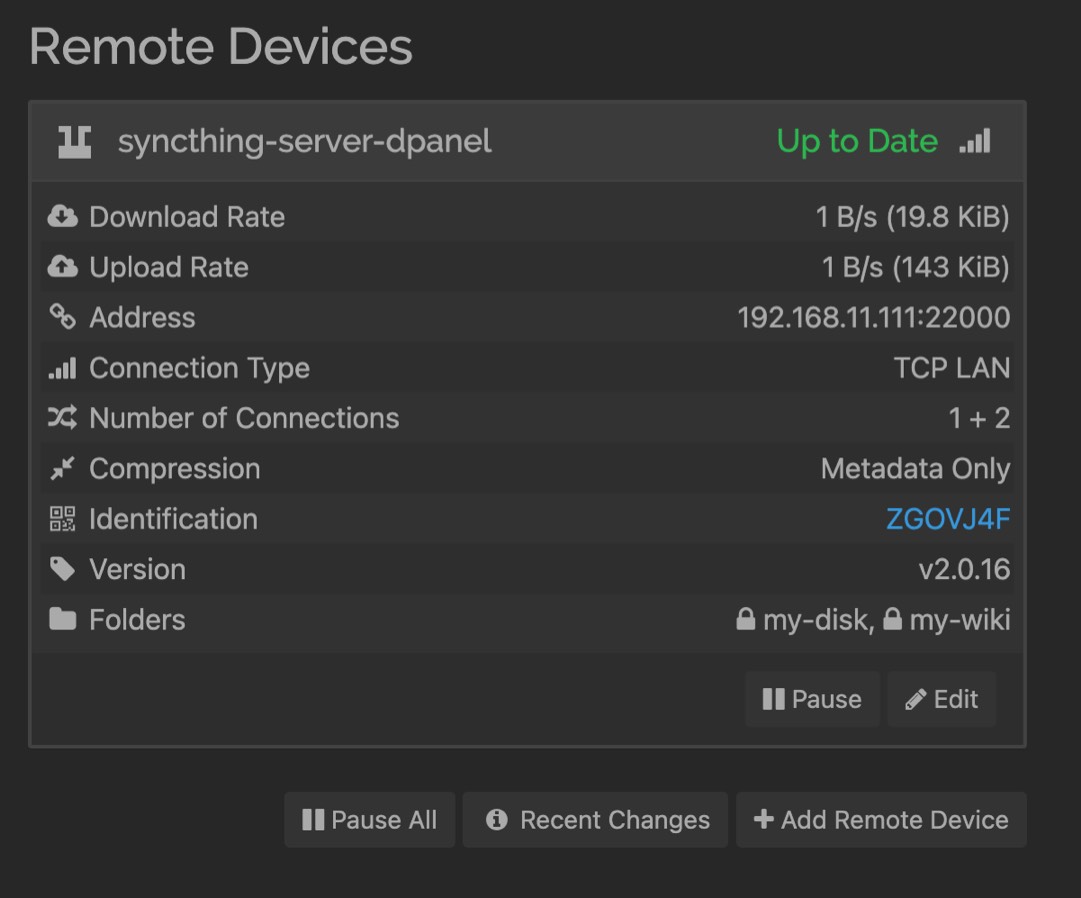
Syncthing has a nice feature: when two machines are on the same network, it auto-discovers each other. You’ll get a popup at the bottom of the Web GUI saying “discovered a new device” and asking if you want to add it. Click to add—saves typing the device ID manually.
But there’s one important detail: check the address after adding.
The auto-discovered address is usually the local LAN IP, like 192.168.x.x. If you’re routing through ZeroTier, change it to the ZeroTier virtual IP—something like tcp://10.147.20.x:22000. If you leave the local IP and your Mac later switches to a different network, the connection breaks.
Both sides need to add each other. Accept the discovery popup on the Mac, then do the same on the server. Two-way handshake.
4. Share a Folder
The order here matters: primary Mac sets up the share with the server first, then the server shares it to the second Mac.
Step one: Primary Mac → Server
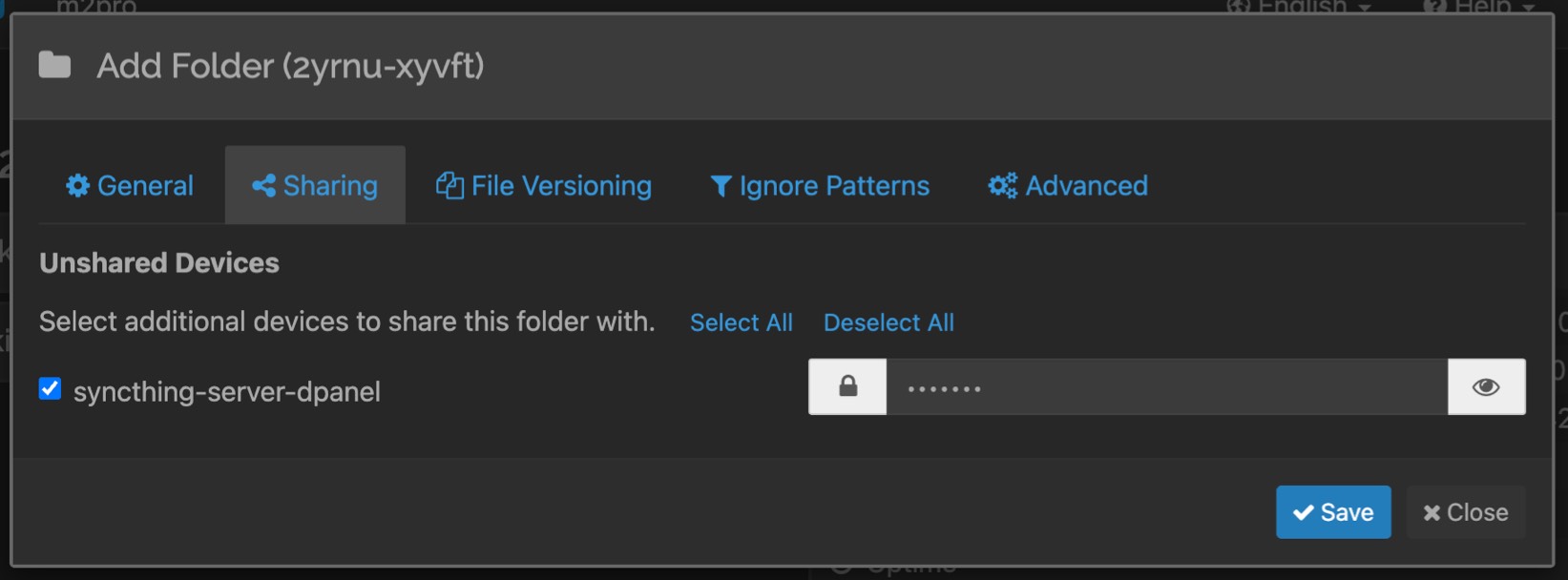
In the primary Mac’s Web GUI: Folders → Add Folder. Pick the my-wiki directory path, give it a label, then check the Linux server under Sharing.
Check the “Encrypt” box. Seriously, don’t skip this. With encryption enabled, the server only sees encrypted filenames and contents. Only the Mac that initiated the share holds the decryption key. Even if someone gets into the server, they can’t read your data.
The server receives a share request—accept it and choose a local save path.
Step two: Server → Secondary Mac
In the server’s Web GUI, add the secondary Mac’s device to the same folder. The second Mac receives a share request, accepts it, and picks a local path.
Now both Macs funnel through the server into a single knowledge base. The primary Mac edits, server picks it up and pushes to the second Mac. The second Mac edits, server receives it and pulls it back to the primary. The server is the thread connecting them.
[!warning] A Note on LLM Workflows Don’t run LLM workflows on both Macs at the same time. The AI batch-updates files quickly, and two simultaneous runs will create
.sync-conflictchaos. Wait for one to finish and sync before starting the other.
The .stignore File
Every synced folder can have a .stignore at its root to tell Syncthing what not to sync.
I didn’t set one up at first. Ran naked for a while, and honestly it was fine. But over time, I realized some files really shouldn’t be synced:
|
|
Comments use //, wildcards work. Changes apply instantly.
My advice: just get it running first. Add ignores later when you notice stuff that shouldn’t sync.
Security
Syncthing’s Web GUI has no password by default. If it’s bound to a ZeroTier virtual IP, anything on that network segment can reach it. At minimum, do this:
Web GUI → Actions → Settings → GUI → check “Enable GUI Authentication” → set a username and password.
Takes ten seconds. Easy to forget.
Common Problems
| Problem | What to check |
|---|---|
| Devices won’t connect | Can they ping each other on ZeroTier IPs? Is port 22000 open in the firewall? |
| Sync stuck | Check “Recent Changes” in the GUI. Might just be transferring a large file. |
Tons of .sync-conflict files |
Both machines edited the same file. Just pick which version to keep and delete the rest. If you’re running LLM workflows (/my-wiki-src or /my-wiki-talk), make sure only one Mac runs them at a time—wait for sync to finish before starting the other side |
| Disconnected after reboot | Did the ZeroTier IP change? Assign static IPs in the ZeroTier network settings. |
| Web GUI won’t load | Mac: brew services restart syncthing. Docker: docker restart syncthing. |
That’s It
The biggest change after all this: I stopped thinking about “which machine has this file.”
Everything on the primary Mac gets picked up by the server and pushed to the second Mac. And whatever the second Mac touches flows back through the server too. Opening Obsidian on either machine means you’re looking at the same knowledge base. ZeroTier handles the network, Syncthing handles the files, and nobody knows what’s sitting on either machine.
One reminder though: when running LLM workflows, only do it on one machine at a time. Both machines trying to let AI rewrite the knowledge base in parallel will get you a pile of .sync-conflict files real quick.
I tried several sync solutions before this. Syncthing is the one I stopped having to think about. No cost, no space limits, no privacy policy to read. Set it up once and it just fades into the background—which is exactly what good infrastructure should do.